 Ventoy
Recursive discovery
ISOs can live in folders and subfolders; Ventoy scans the first (large) partition and lists images—alphabetically by default. Plugins can limit search paths.
Independent guide · English
Ventoy is a multiboot tool: install it once, then drop ISO, WIM, IMG, or VHD(X) files onto the drive—no need to wipe and re-flash for every new OS or rescue disc. This page explains how it works, how to install it safely, and how others solved common problems. Jump to step-by-step installation, download installers, or troubleshooting fixes.
Always verify checksums for any ISO or installer package you use.
Screenshots — use arrows or dots (no auto-play). Tab into the gallery for ← → keys.
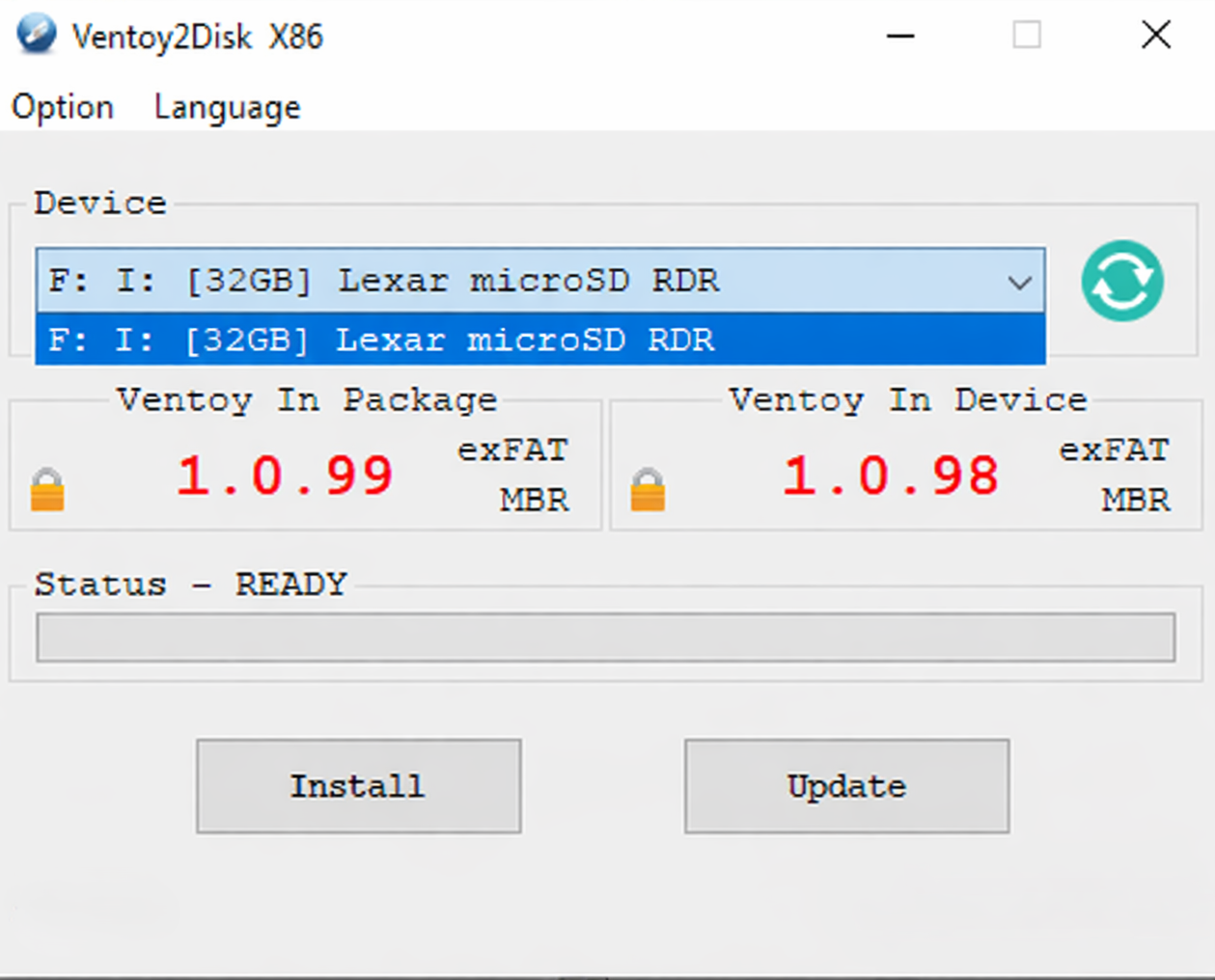
Ventoy2Disk
Windows installer · device · Install / Update
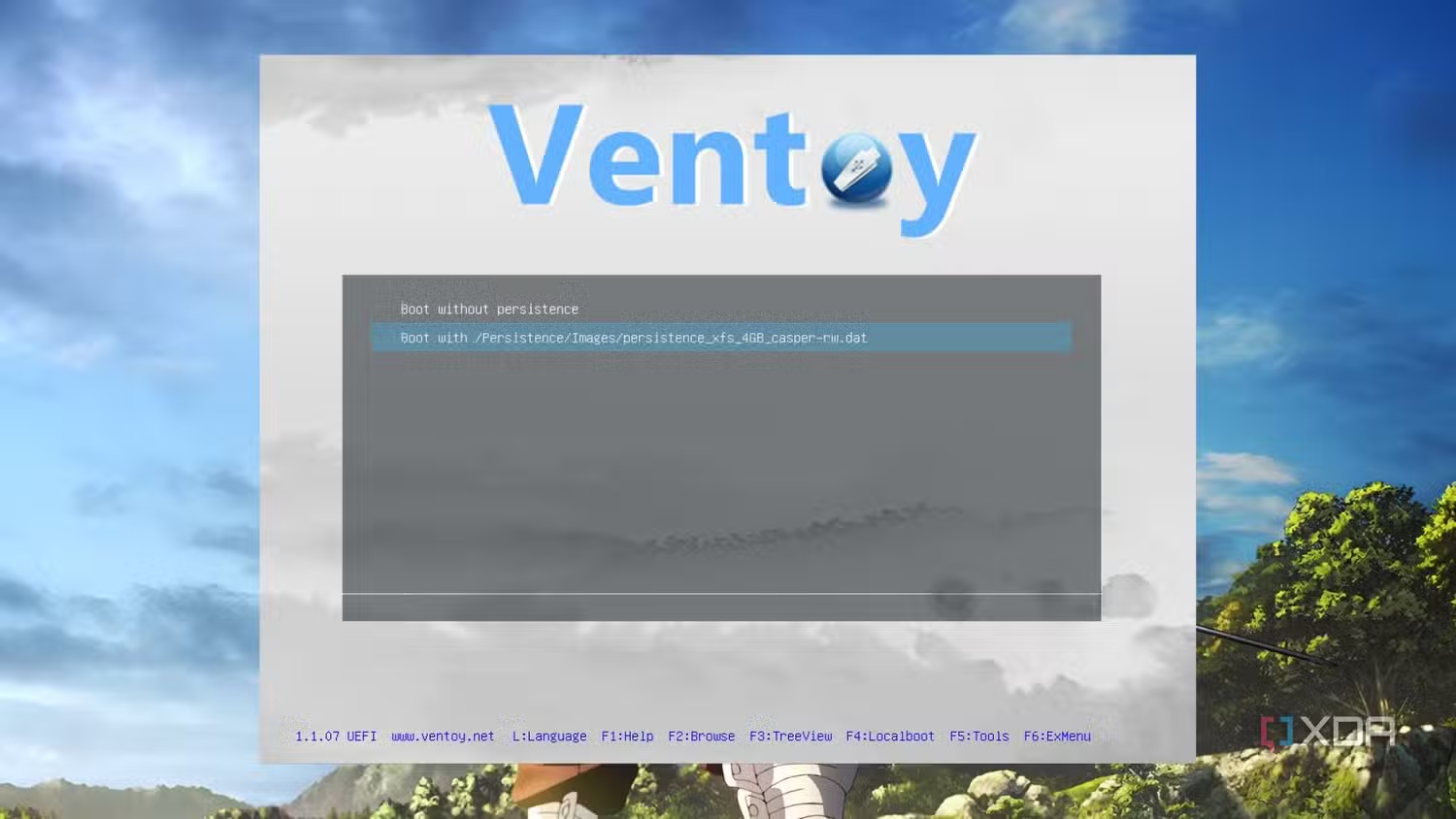
Persistence
Ubuntu · virtual machine
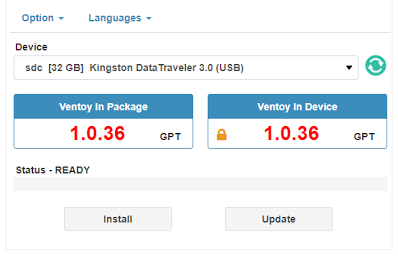
Ventoy2Disk
Different USB device · GPT example
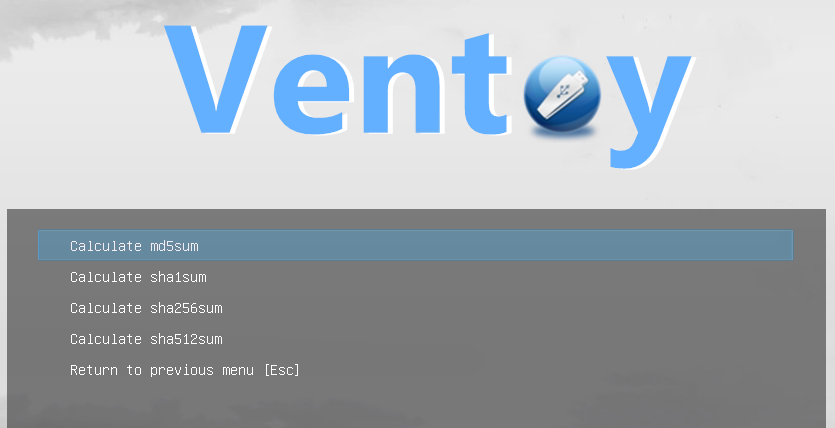
Checksum
Verify an image before you boot
Traditional USB tools often write one image at a time. If you need Windows today, Linux tomorrow, and a memory-test ISO on the weekend, you end up reformatting or juggling multiple sticks. Ventoy keeps a small EFI boot partition and a large data partition: you copy files like normal documents, boot, and pick an entry from the menu. Before you start, read requirements and safety and follow Windows or Linux installation.
ISOs can live in folders and subfolders; Ventoy scans the first (large) partition and lists images—alphabetically by default. Plugins can limit search paths.
Supports x86 Legacy BIOS, IA32 UEFI, x86_64 UEFI, ARM64 UEFI, and MIPS64EL UEFI. Secure Boot is supported in recent versions when configured correctly.
The big partition can store ordinary files alongside images; everyday use does not break Ventoy as long as the filesystem rules (e.g. cluster size) are respected.
/ventoy/ventoy.json.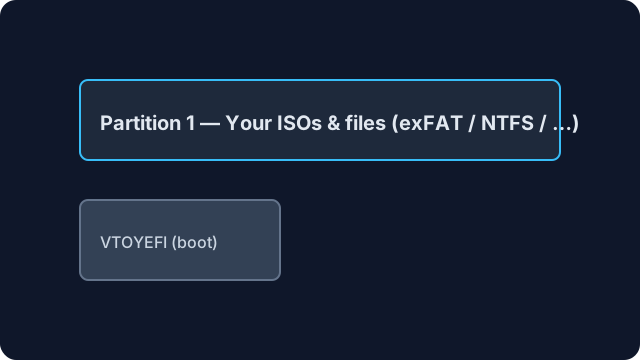
After installation you typically see two partitions: a small EFI (VTOYEFI) region and a larger exFAT (or user-chosen) filesystem for images.
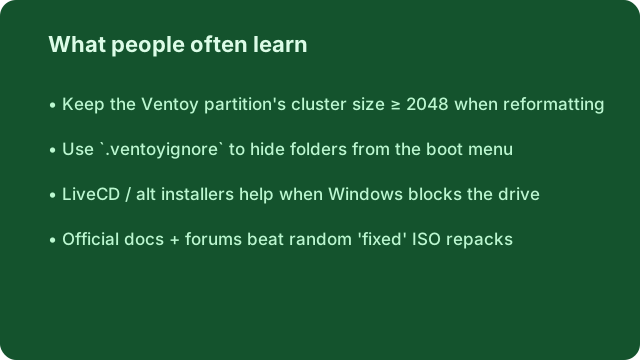
You may use FAT32, NTFS, UDF, XFS, ext2/3/4, etc., but cluster size must be ≥ 2048. Example commands (adjust device letters/paths):
format X: /fs:ntfs /q
sudo mkfs -t ext4 /dev/sdX1
These steps cover a typical install; your package version may differ slightly in filenames or dialogs.
ventoy-x.x.xx-windows.zip from a source you trust and extract it.Ventoy2Disk.exe (32-bit binary; works on 64-bit Windows). Since 1.0.58, alternate builds exist in altexe—copy the X64/ARM variant up next to the main EXE if needed.If the GUI always fails, try a LiveCD-based install or the Ventoy2Disk troubleshooting notes bundled with your installer.
ventoy-x.x.xx-linux.tar.gz and extract.sudo sh Ventoy2Disk.sh -i /dev/sdX (replace sdX with your device, not a partition number).-I for forced reinstall, -u for upgrade, -l to print Ventoy info.-s (Secure Boot support), -g (GPT), and -r SIZE_MB to reserve space at the end of the disk.GUI options: GTK/Qt or WebUI installers are available in many Linux packages.
Symptoms below appear often in community threads. They are summarized here with practical next steps; cross-check with GitHub issues when you need a precise match for your build.
ventoy.json so Ventoy scans fewer folders.grub> shell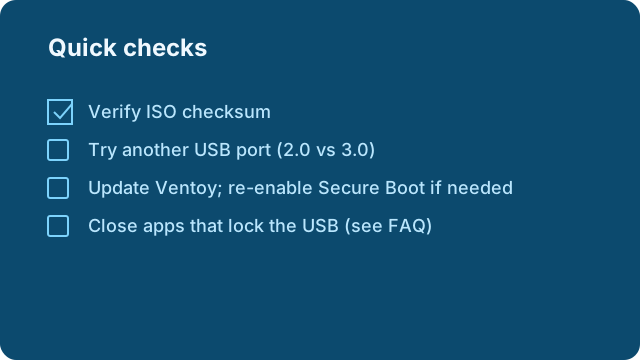
Verify checksums for large ISOs before assuming Ventoy is at fault.
These are typical patterns people report—not testimonials of this site. They help you recognize situations faster and search with better keywords (useful for discovery on Google, Bing, and Yandex).
“IT bench workflow: I keep WinPE, Linux live, firmware updater ISOs, and memtest on one 128 GB stick. Clients boot whatever they need; I only refresh individual files.”
“The mystery missing drive: Ventoy2Disk showed nothing until I quit Intel DSA and Paragon services—then the stick appeared instantly.”
“Slow menu after hoarding files: I copied entire project backups to the Ventoy partition. Boot scans took forever until I limited search paths in ventoy.json.”
“Linux after boot: I needed the ISO partition inside the running OS—Linux remount behavior explained why the volume looked empty at first.”
Yes—USB drives, removable HDDs, SD cards, SATA disks, SSDs, NVMe, and more. Windows lists removable USB-class devices by default; Linux targets a block device you specify. Any install still destroys data on that disk.
On the Ventoy menu, check the lower-left version line: it shows BIOS, UEFI, IA32, AA64 (ARM64), or MIPS depending on mode. The motherboard firmware decides the mode.
Windows may have moved the file to the Recycle Bin on that volume instead of deleting it completely—empty the bin or shift-delete.
On the first large partition, inside a folder named ventoy—full path /ventoy/ventoy.json. Do not place it on the small VTOYEFI partition.
Installers and release notes are hosted on ventoy.co. Verify checksums after download when they are published with each build.
Bookmarkable page with the same download link (all languages): ventoy.co/download.html.
Extended reference
The blocks below add practical depth—filesystem trade-offs, real roles, security habits, and terminology. They are written to complement the overview and install sections, not repeat them line for line.
Ventoy presents a menu after firmware hands control to the USB. Whether that handoff used Legacy BIOS or UEFI is determined by your motherboard settings (CSM on/off, “USB boot mode”, secure boot policy), not by a toggle inside Ventoy’s menu. If an ISO behaves differently in one mode, mirror the same mode you used when the vendor tested that image—mixing UEFI ISO expectations with a Legacy boot path is a frequent source of “it boots but then fails” reports.
The small build string on the Ventoy screen tells you which architecture and mode you are in. Screenshot or note it when asking for help; mismatched mode descriptions make remote debugging guesswork.
After installation you may reformat the large partition within Ventoy’s rules (minimum cluster size). Here is a decision-oriented comparison—your OS mix and file sizes should drive the choice.
| Filesystem | Typical strength | Watch out for |
|---|---|---|
| exFAT | Large ISOs, simple Windows+macOS interchange | Some older Linux tools need extra drivers for write access |
| NTFS | Very large files, Windows-native tooling | Repair tools differ across OSes if not cleanly ejected |
| FAT32 | Maximum compatibility for small utilities | 4 GB file size limit—problematic for big ISOs |
| ext4 | Linux-first workflows, permissions you understand | Windows needs third-party drivers for convenient editing |
Carry one high-quality 64–256 GB stick: a hardware diagnostic ISO, two Linux live environments with different kernels, a firmware update bundle for common vendor models, and a memory-test image. Keep a /tools folder for portable Windows utilities that are not boot images so they do not inflate scan time—use .ventoyignore on heavy archive trees.
Versioned nightly builds clutter menus—prefix filenames with YYYY-MM-DD_ so alphabetical sorting matches chronological order. For A/B tests, duplicate ISOs with clear suffixes rather than overwriting silently; checksum both before field use.
Standardize one “known good” semester image per bench, keep a secondary slim rescue ISO, and document the expected boot mode (UEFI vs Legacy) on the room poster—students mix modes more often than power users.
Ventoy can compute hashes at boot when you use its tools—use that for spot checks on slow hotel Wi‑Fi downloads. Separately, prefer publishing your own internal checksum file alongside classroom ISOs so students compare against your mirror, not a random search result.
Cheap adapters throttle sustained reads and overheat—symptoms look like random boot failures, not clear error strings.
Fast for iterative QA; still verify TRIM/idle power behavior on laptops that cut USB power aggressively.
Convenient for cameras; random-write performance varies wildly—benchmark before relying on them for huge ISO libraries.
Rufus, balenaEtcher, and dd-style imagers excel at writing one image accurately. Ventoy optimizes for many images over time without re-flashing. Choosing is a workflow question: frequent OS swaps favor Ventoy; one-off media creation may stay simpler with a dedicated flasher.
Plugin configuration can add menu passwords in supported setups—treat passwords as a deterrent, not encryption of the whole stick; physical access still matters.
Default ordering is alphabetical; rename files with consistent prefixes or use plugin rules if you need a fixed demo sequence.
No—your ISOs are ordinary files on the partition. Use OS-level encryption or hardware-encrypted drives if policy requires it.
Installers need write access to the destination disk; prepare sticks on a full admin session, then lock down clients separately.
Low-level disk tools sometimes trigger heuristics; verify signatures from the project release, temporarily exclude the download folder, or install from Linux.
Record Ventoy build string, firmware mode, partition style, filesystem, and checksums of every ISO—future you will not remember the “obvious” defaults.
When more than one person updates the same USB, agree on a naming scheme, a retirement policy for old ISOs, and a monthly checksum audit. For distributed teams, ship a small text manifest (SHA256SUMS) on the partition so recipients verify before imaging lab machines.
“We stopped emailing ‘latest ISO’ links and instead pinned exact filenames in our runbook—support tickets dropped because everyone booted the same bytes.”
Boot menus are often read under poor lighting or during incidents. Short, descriptive filenames beat clever abbreviations. If you theme the UI, keep contrast high; what looks stylish in a screenshot may be unreadable on a dim projector.
Datacenter PXE chains are unbeatable when every machine trusts your DHCP scope. Ventoy shines where there is no network, air gaps, or guest networks block PXE. Many teams use both: PXE for fleet rollouts, Ventoy for one-off bench diagnostics.
Track Ventoy’s own version independently from the ISOs you carry. Updating Ventoy is not the same as refreshing an Ubuntu point release—note both in your change log so rollback stories stay coherent.
If the EFI partition is damaged but the data partition still mounts, specialist disk tools can sometimes rebuild boot structures—back up ISOs first because repair attempts can still go wrong. For irreplaceable files, treat the stick like any other failing drive: clone sector-for-sector before experimenting.
Ventoy’s license is separate from the licenses inside your ISOs. Enterprise redistribution of Windows images, OEM recovery media, or classroom software may have contractual constraints—this guide does not replace your legal review.
ARM laptops, hybrid tablets, and mixed UEFI policies will keep evolving. Habits that age well: document firmware quirks per machine model, keep at least one deliberately “boring” USB 2.0 stick for stubborn hosts, and never assume yesterday’s successful boot guarantees tomorrow’s firmware update behaved the same way.
Dense notes below extend the first reference block—workflows, edge cases, and vocabulary without repeating the hero install steps.
WinPE-based flows often assume a specific boot loader path and driver load order. When you place a custom WIM on a Ventoy stick, validate that the PE environment includes network and storage drivers for the NIC and disk controller of the machines you service—missing drivers masquerade as “Ventoy broke” when the chain never reaches your script stage.
Debian-derived, Red Hat–family, Arch-based, and immutable desktops differ in live-boot behavior, persistence hooks, and init system. Ventoy lists files uniformly, but the experience inside each ISO is defined by that distro’s maintainers—expect to read their release notes when something “almost boots.”
Rolling images update kernel lines frequently—great for hardware enablement, noisy for reproducible classroom labs.
Older LTS ISOs trade new drivers for predictability; keep one on the stick when you must match a vendor’s certified stack.
VM firmware often defaults to UEFI with a synthetic disk order. Map USB passthrough carefully: some hypervisors expose the stick as a removable disk, others as a SCSI device—both can work, but the guest OS may enumerate controllers differently than bare metal. Treat VM success as necessary but not sufficient before field deployment.
Mac boot policies change across Intel vs Apple Silicon generations. Generic PC multiboot assumptions do not transfer verbatim—verify Apple’s current support matrix for external bootable media before promising a Ventoy-based workflow to creative teams.
When a machine fails mid-deployment, capture: firmware version, boot mode string from the Ventoy footer, exact ISO filename, whether Secure Boot was on, and whether any USB hubs sat between stick and port. That bundle answers half of remote triage questions before you ship another stick.
SYMPTOM: ______________________
HOST MODEL / BIOS: _______________
VENTOY LINE (footer): ___________
ISO filename: ___________________
SECURE BOOT (Y/N): _____________
USB PORT (2.0/3.x/direct): _____
Some enterprise USB drives expose a physical write-lock. If you lock after preparing the stick, you reduce accidental tampering—but you also block Ventoy upgrades until you unlock. Decide per policy: tamper resistance vs agility.
Laptops on battery power may throttle USB ports; Thunderbolt docks occasionally reorder boot devices. If a stick works direct-attached but fails through a dock, test without the dock before debugging ISO contents.
Use OS-ARCH-channel-YYYYMMDD.iso style names. Avoid emoji and non-ASCII in filenames if you move sticks across older firmware; Unicode is better supported on modern hosts but still risky in niche industrial PCs.
Installer language packs are not Ventoy’s layer—set expectations inside each ISO. For international teams, duplicate ISOs with clear language suffixes rather than relying on “it will prompt.”
Time from power-on to menu readiness is dominated by USB speed, file count, and plugin search rules—not CPU branding on the host. When optimizing, reduce file count before buying faster hardware.
Large shops barcode sticks and map them to owners. Pair a physical sticker with a spreadsheet row: serial (if any), Ventoy version, last verification date, and allowed ISOs for compliance audits.
When networks are forbidden, sneakernet updates are the workflow. Maintain two identical sticks prepared on different days so you can diff them binary-wise if a “silent” corruption is suspected.
Technically yes; policy-wise maybe not. Separate sticks reduce cross-contamination risk.
Sustained read during long installs heats NAND; ensure airflow in hot environments.
Generally irrelevant for flash; focus on filesystem health and free space.
If firmware supports USB-C boot, yes; otherwise carry a certified adapter you have tested.
Hidden copies, sync conflict files, or duplicate filenames in different folders—search the partition with a file manager.
Often yes for interoperability; still keep backups—single-disk failure is single-disk failure.
Question
Explain why a technician might prefer Ventoy over re-flashing between three Linux distros weekly.
Hint: time to switch, reduced wear from full rewrites, fewer human errors picking a target disk.
Question
What would you log when a stick boots on laptop A but not laptop B with the same ISO?
Hint: firmware mode, port type, ISO checksum, Ventoy version.
A consultant flies with a single encrypted laptop and an unencrypted Ventoy stick containing only public ISOs. Customs inspection asks to power on; the menu appears harmless. Lesson: content policy matters more than boot tool branding.
A lab replaces half its PCs every semester. Technicians clone identical sticks from a master image file stored on a NAS—Ventoy version pinned, ISOs hashed weekly. Drift is caught when checksums differ, not when users complain.
A hobbyist keeps Windows installer, two Linux lives, and a rescue disk. They rarely update Ventoy itself—acceptable until a firmware change forces Secure Boot enrollment; then they revisit the installer once a year.